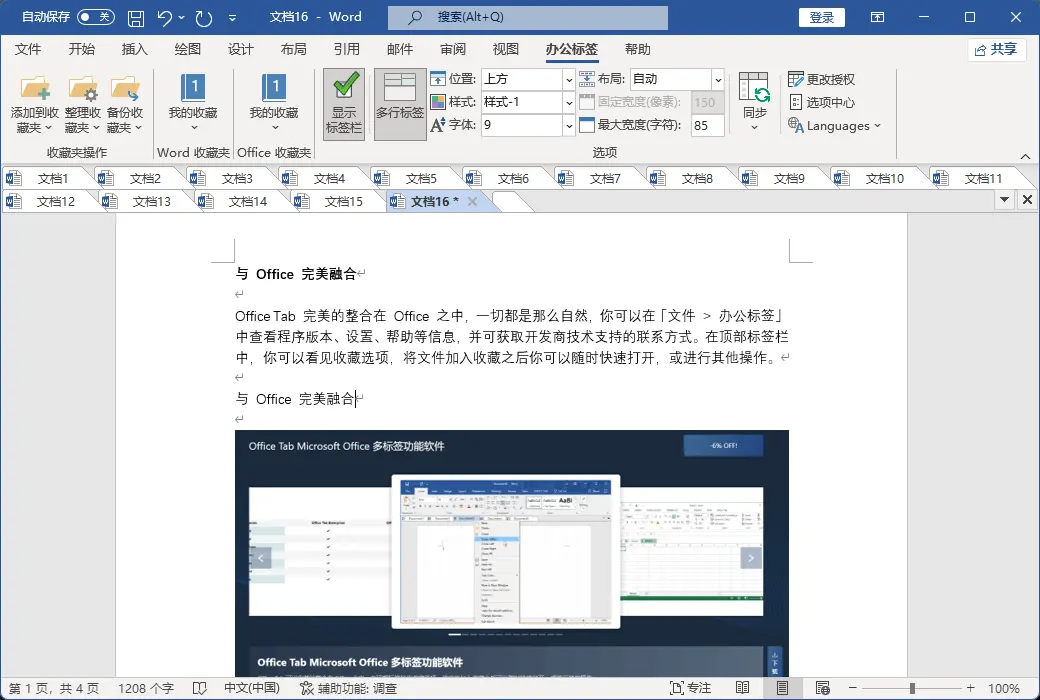
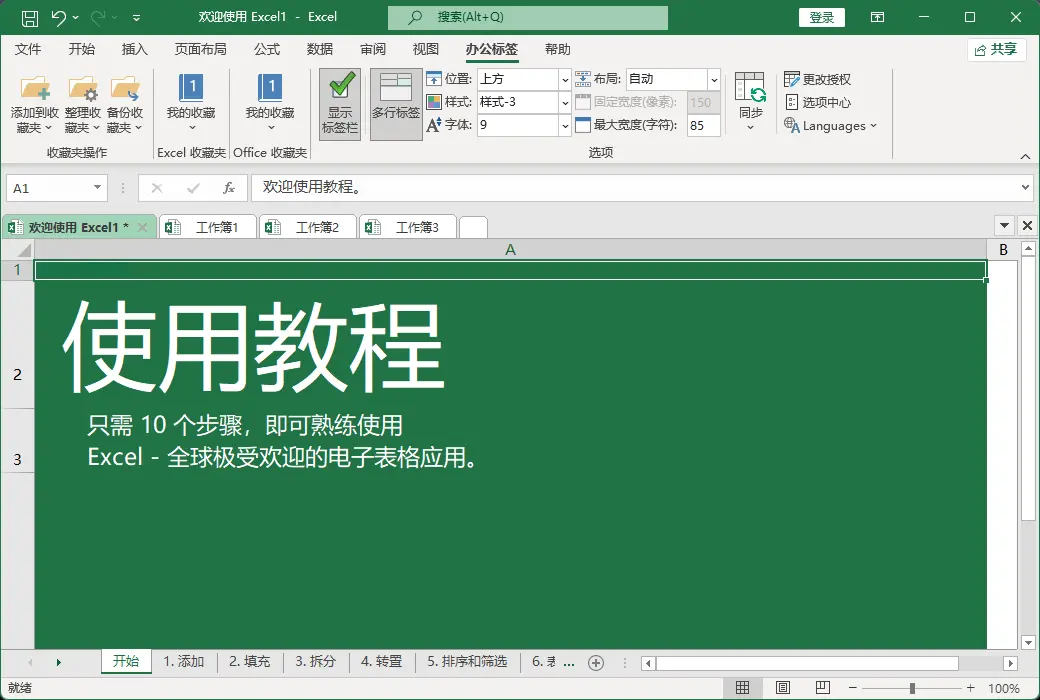
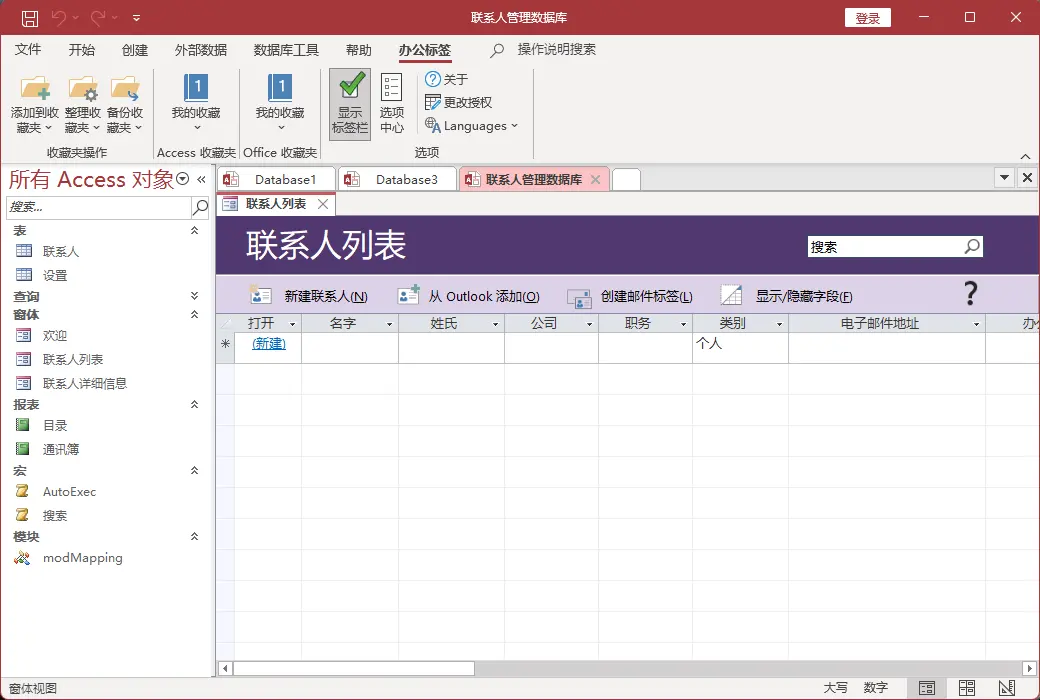
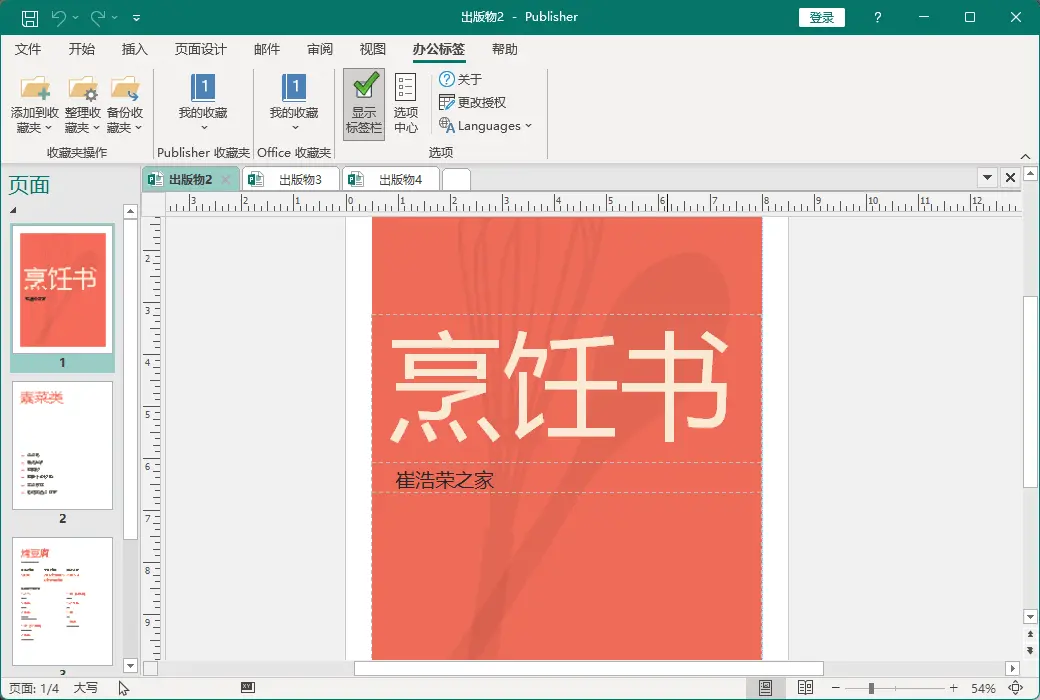
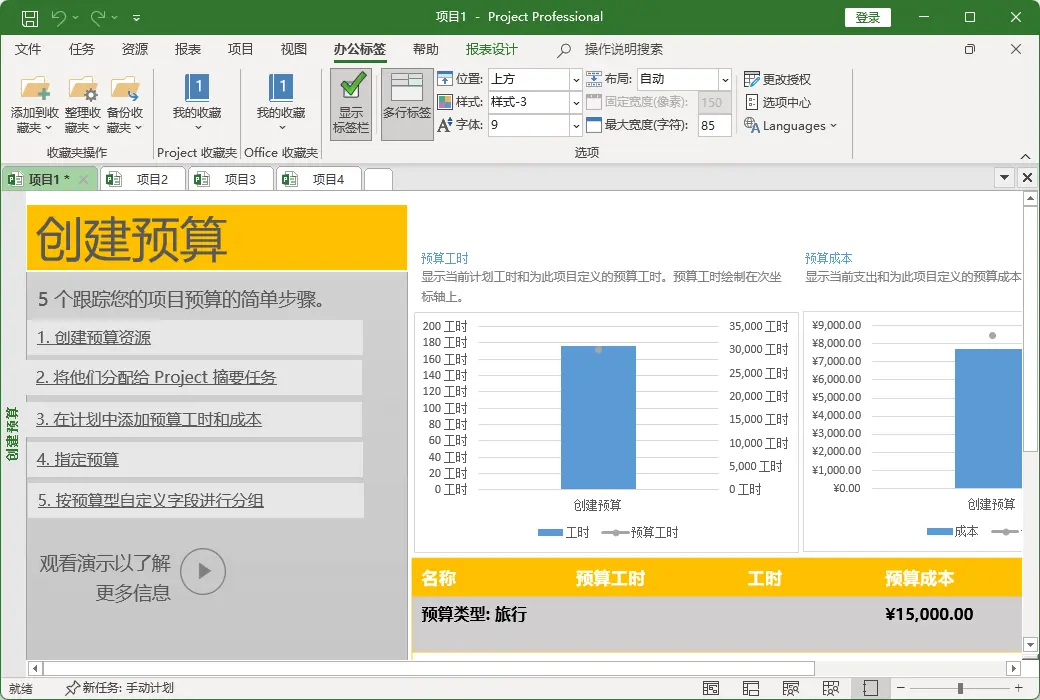
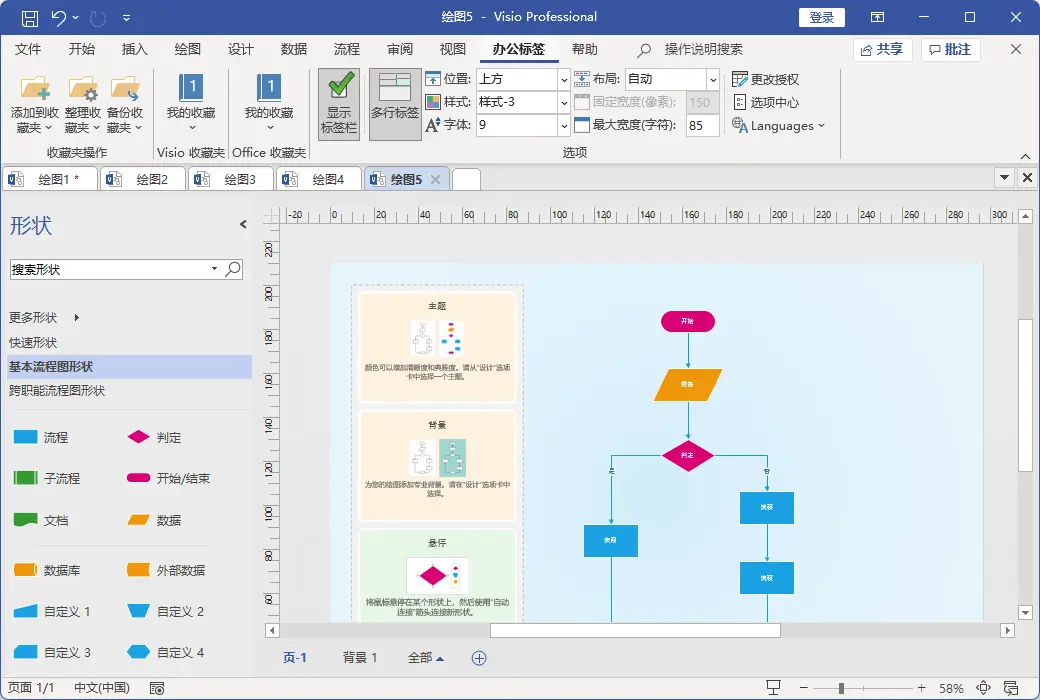
- Office Tab Enterprise Edition: Word, Excel, PowerPoint, Publisher, Access, Project and Visio。
- Office Tab Standard Edition: Word、Excel、PowerPoint。
Perfect integration with Office
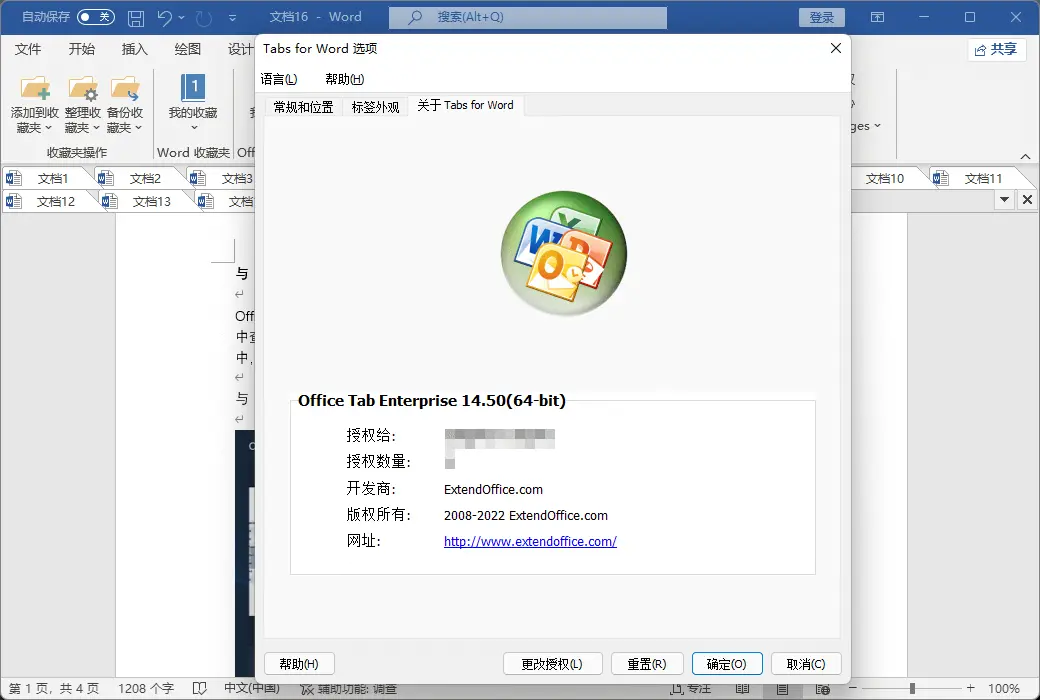
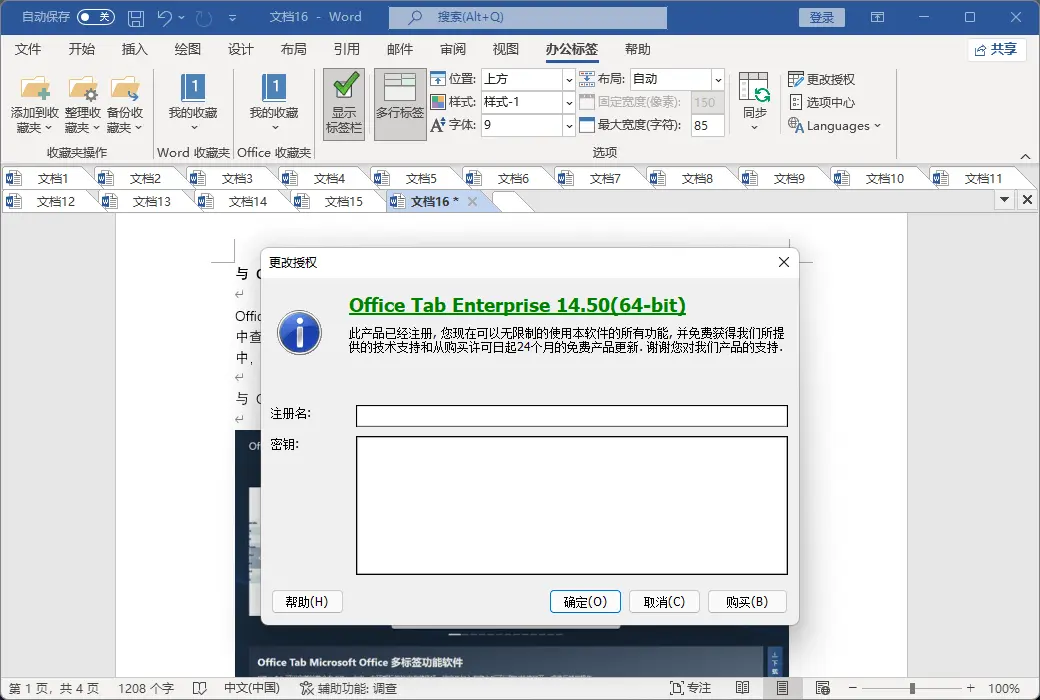
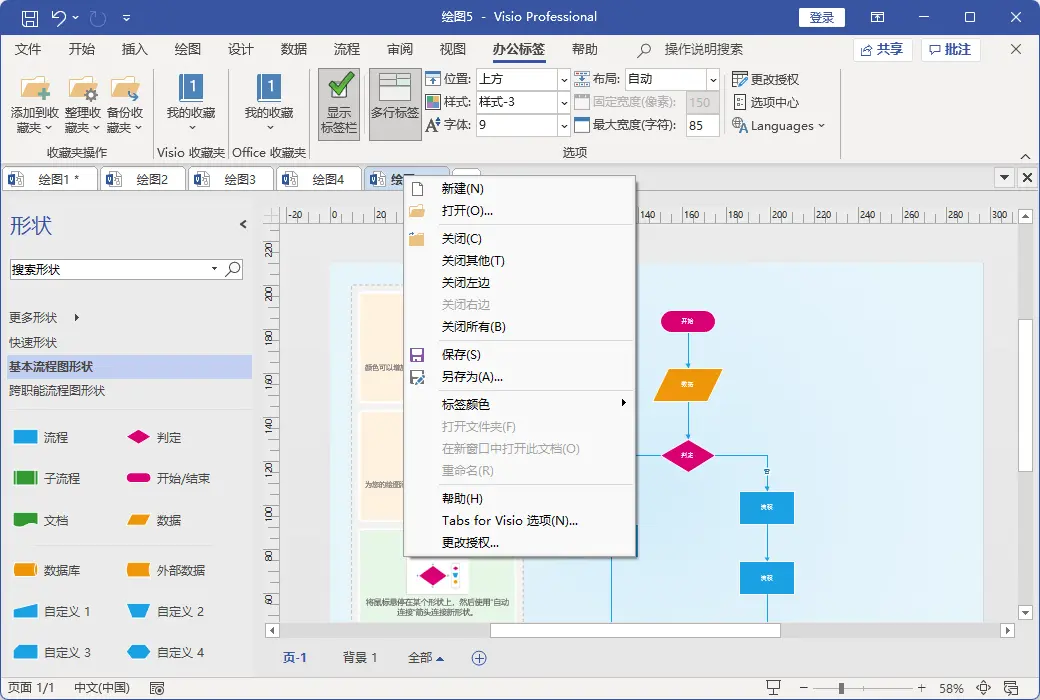
The Office Tab is perfectly integrated into Office, everything is so natural. You can view program versions, settings, help, and other information in the "Files>Office Tab", and obtain contact information for developer technical support. In the top tab bar, you can see the bookmark option. After adding files to your favorites, you can quickly open them or perform other operations at any time.
Label management to improve efficiency
With the tab bar window interface, you can open multiple tab documents in one window. Each document appears as a label in the window, allowing you to easily access Microsoft Office (Word, Excel, PowerPoint, Project, and Visio) with just one click. This new feature enhances your work efficiency.
Convenient and efficient right-click menu
Right click on the tag or tag column to enter the tag or tag column right-click menu. The Office menu also combines Microsoft Office common command items, allowing you to quickly use these operation options.
If you have opened multiple documents, you do not need to save or close them one by one. Click 'Save All' in the right-click menu to save all documents. If you want to close all open documents, simply select 'Close All'.
Drag and drop management tags
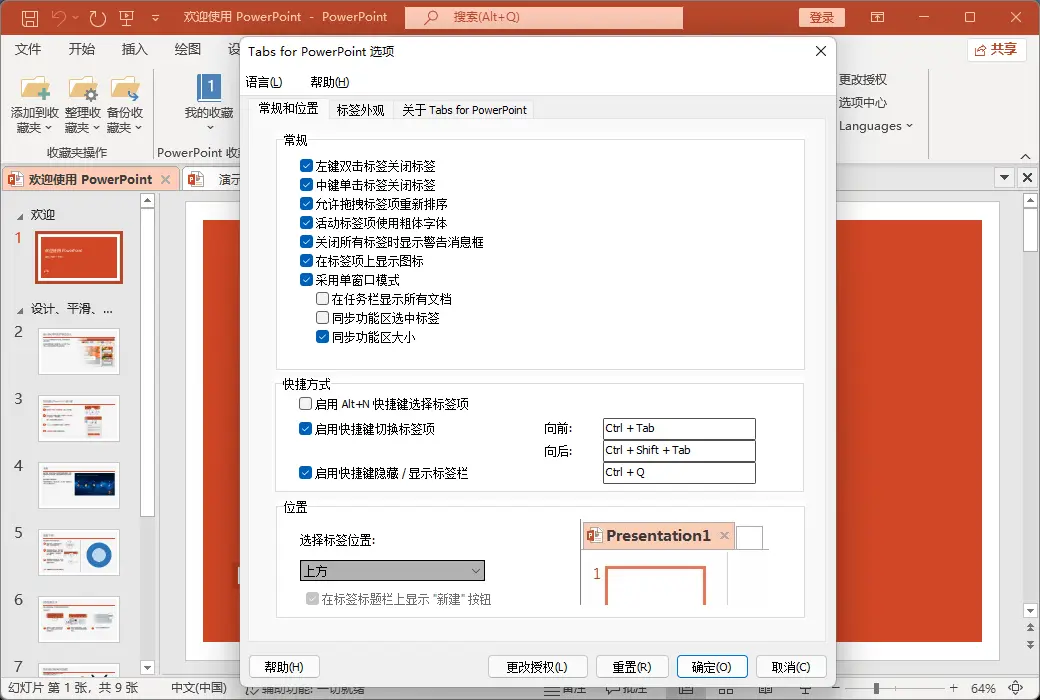
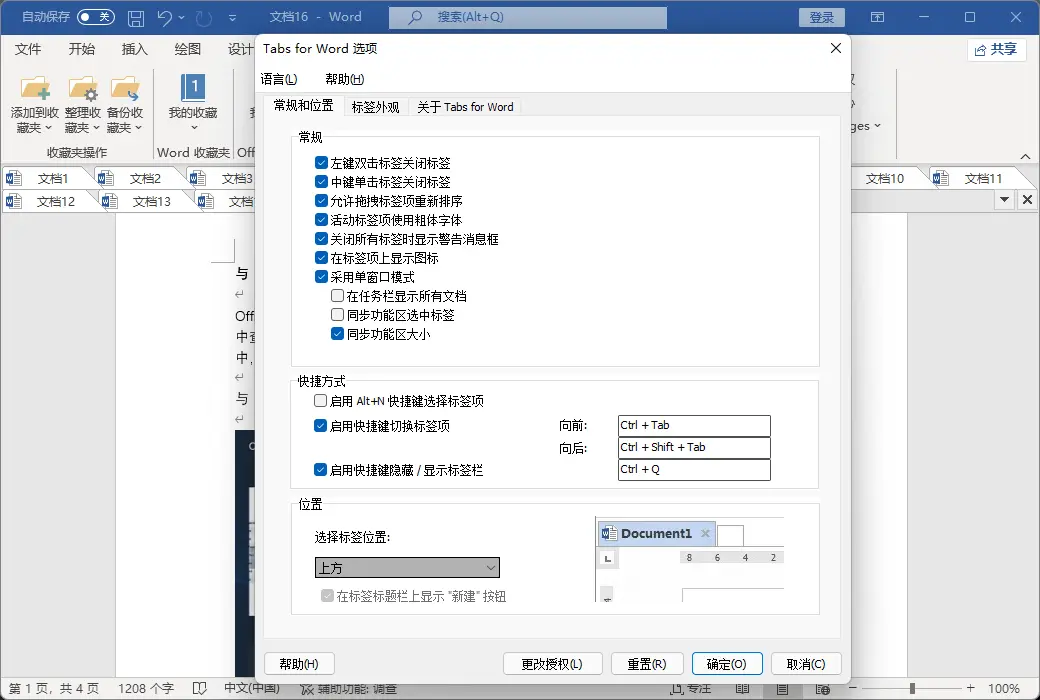
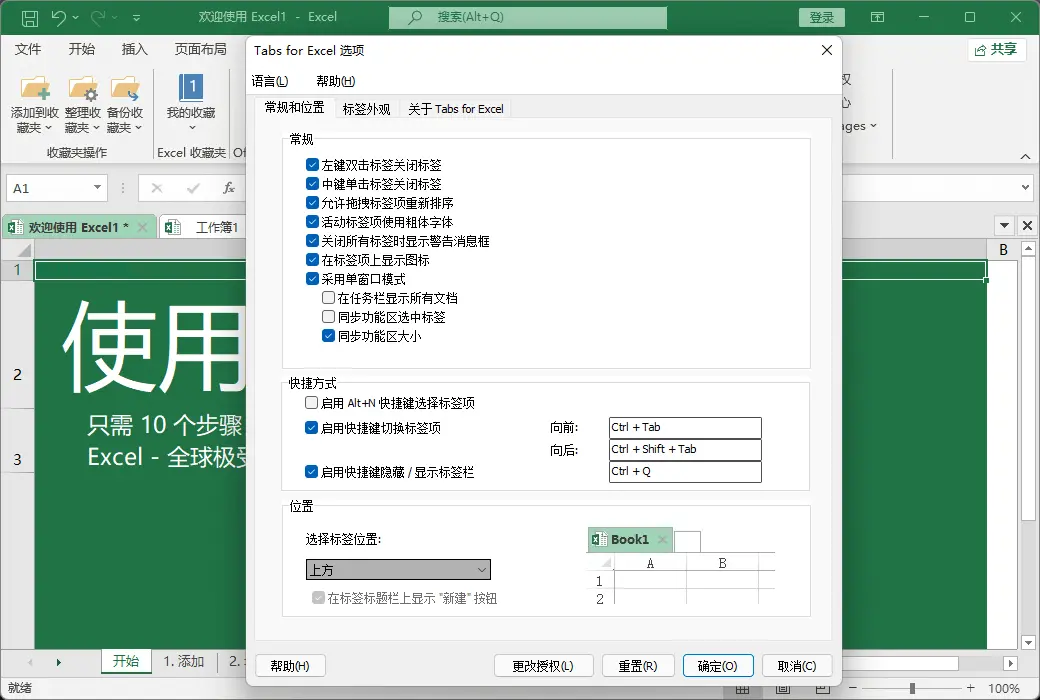
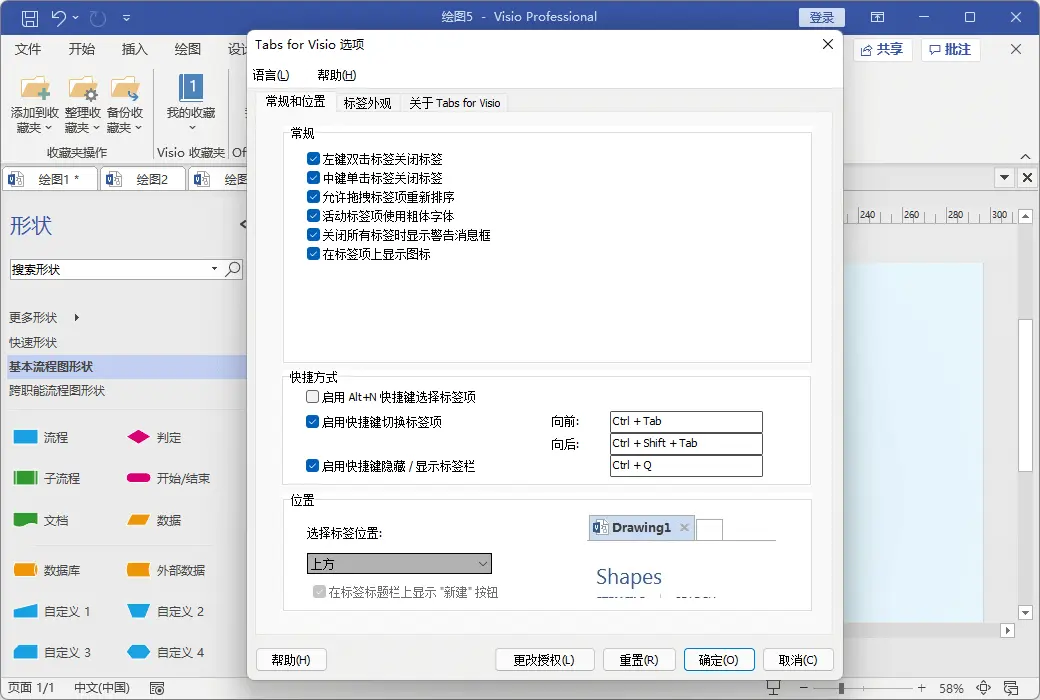
You can easily drag or switch labels. You can also press Alt+N ("N" represents tag number "1, 2...") to activate the tag.
Easily rename documents
If you want to rename a document, there is no need to open the "Save As" dialog box - simply click on "Rename" in the menu to the right of the label and enter a new document name. If you want to save the document to another folder, simply select "Save As..." from the menu on the right.
Customize the appearance of the label bar
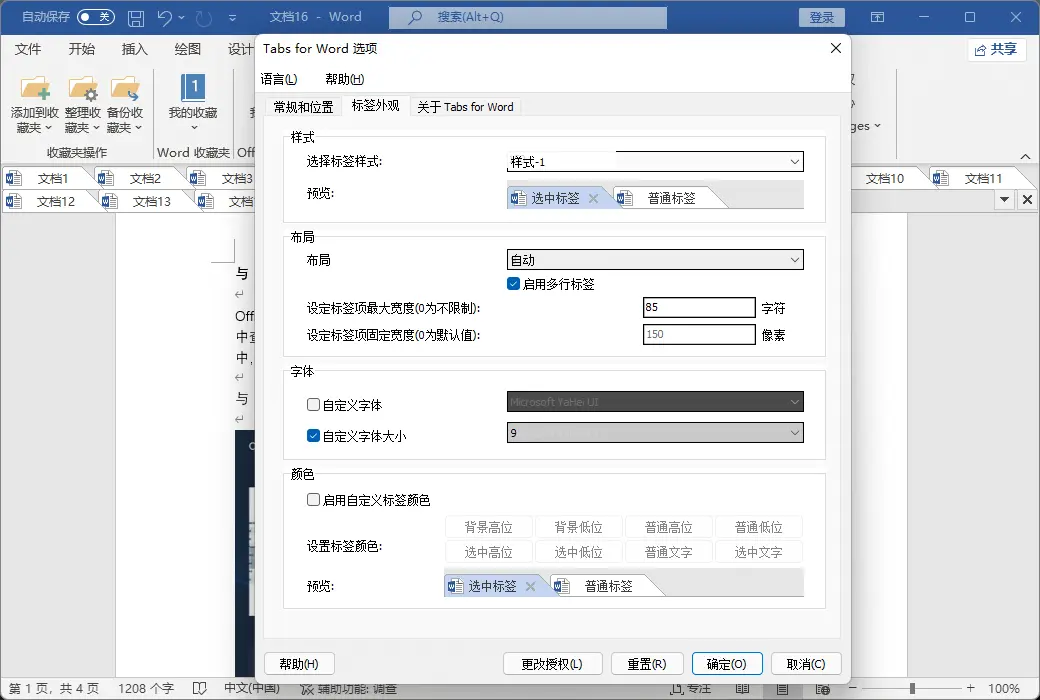
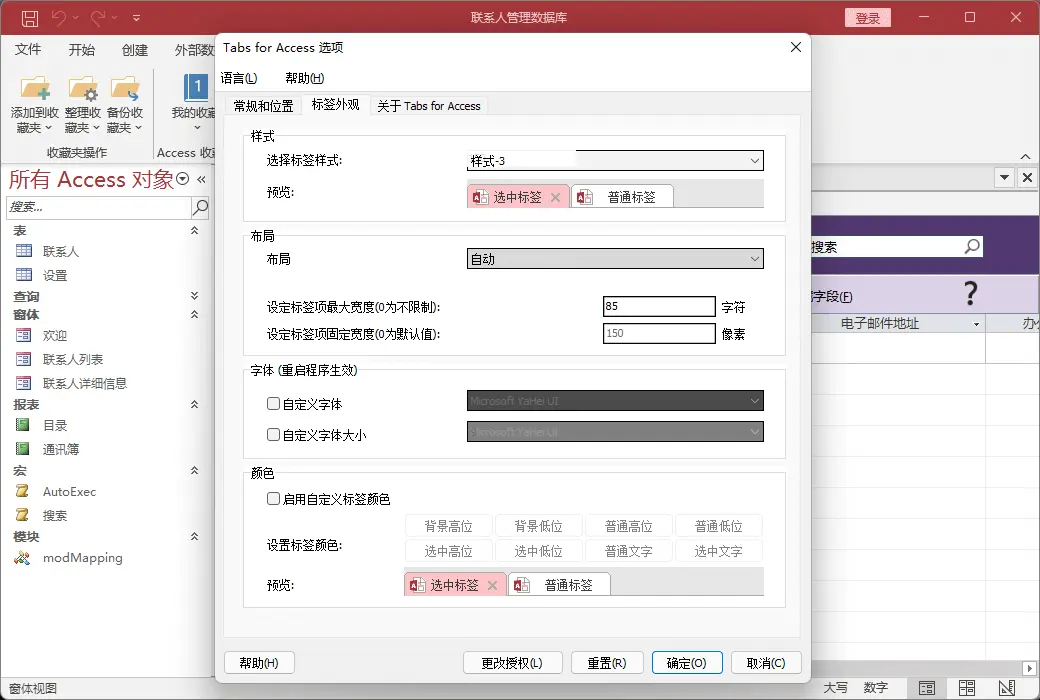
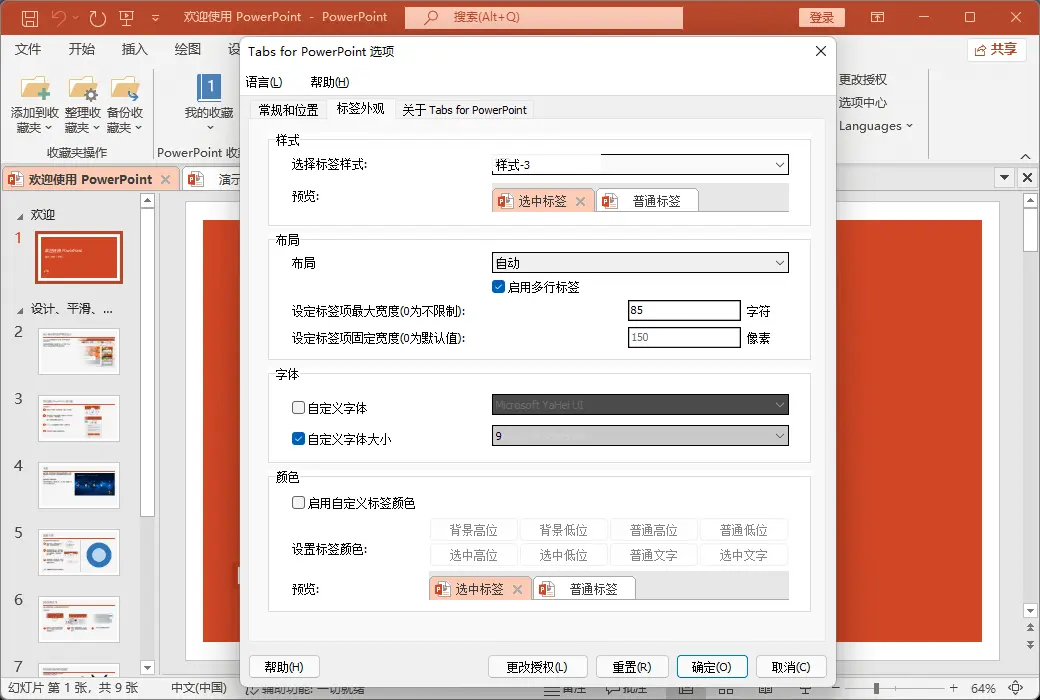
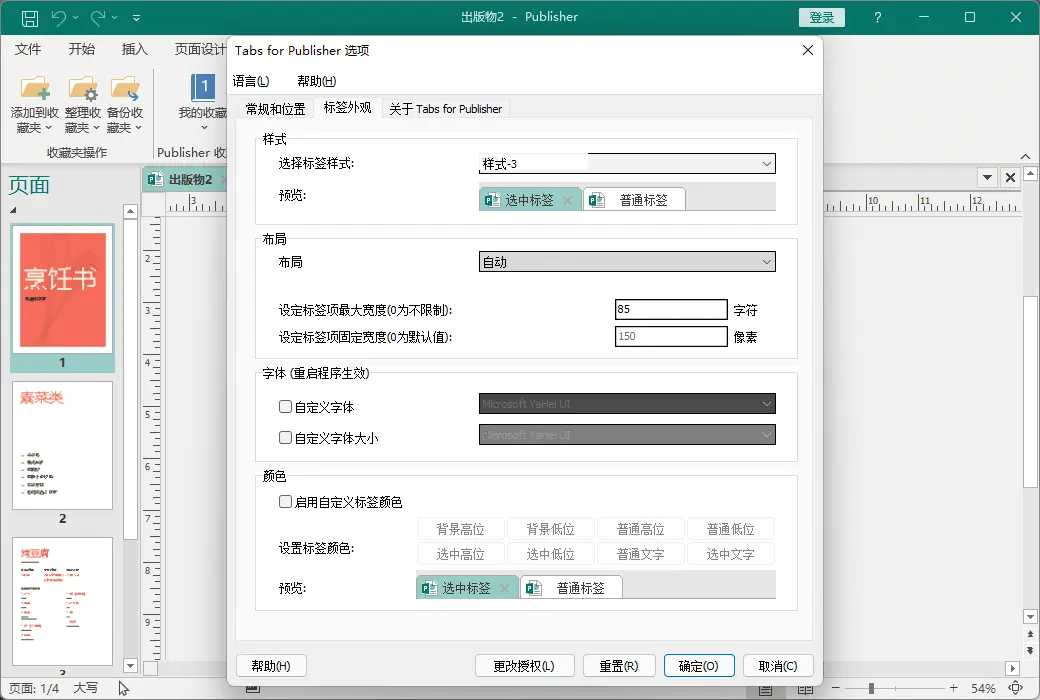
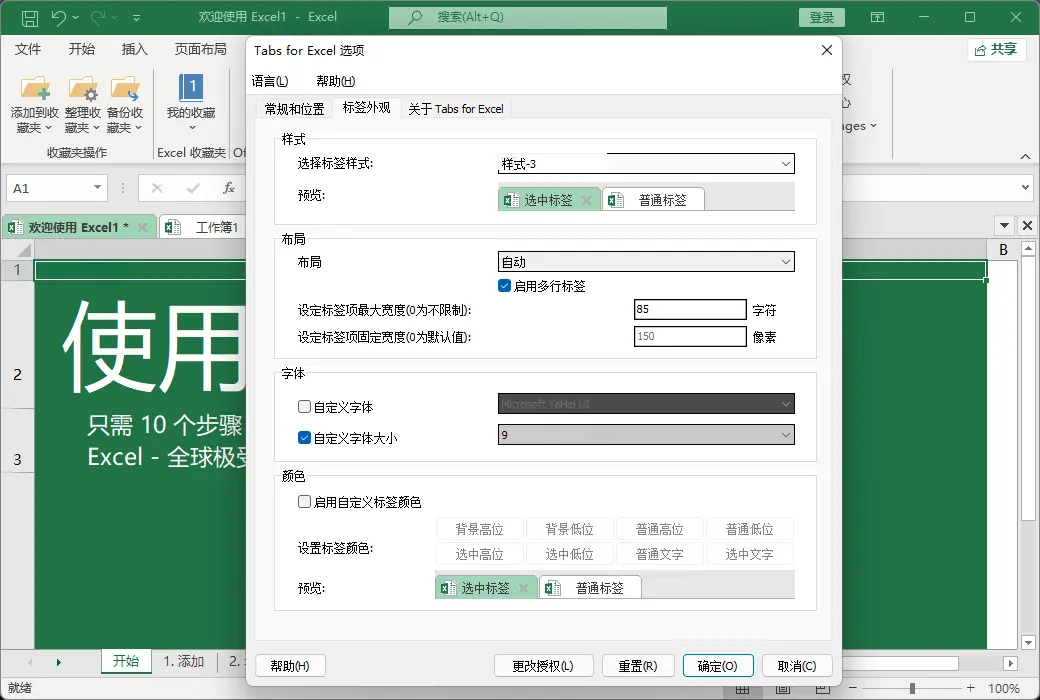
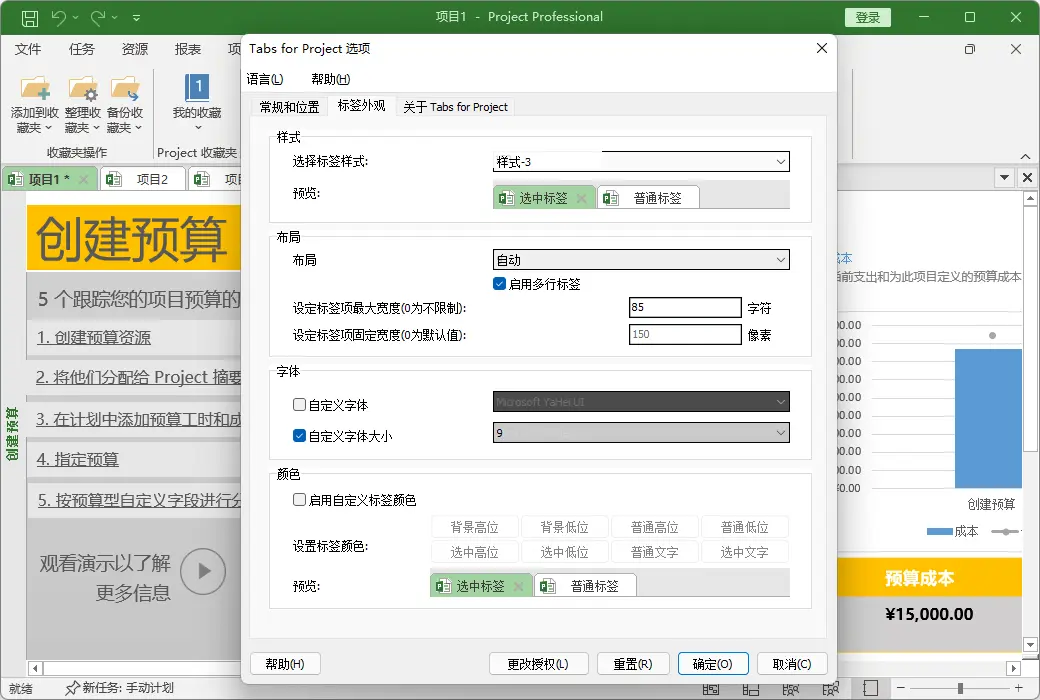
You can customize the appearance of the label bar and the color of the label column. You can customize the font and the name of each label according to your preferences (application customization, you need to restart Microsoft Office programs).
Rich shortcut keys
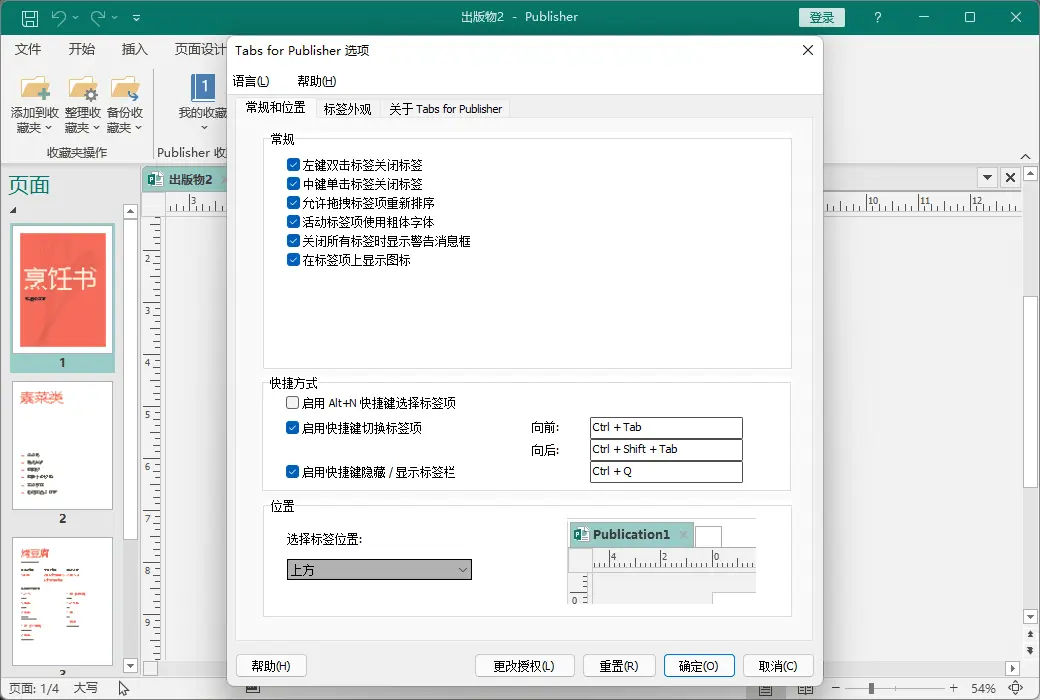
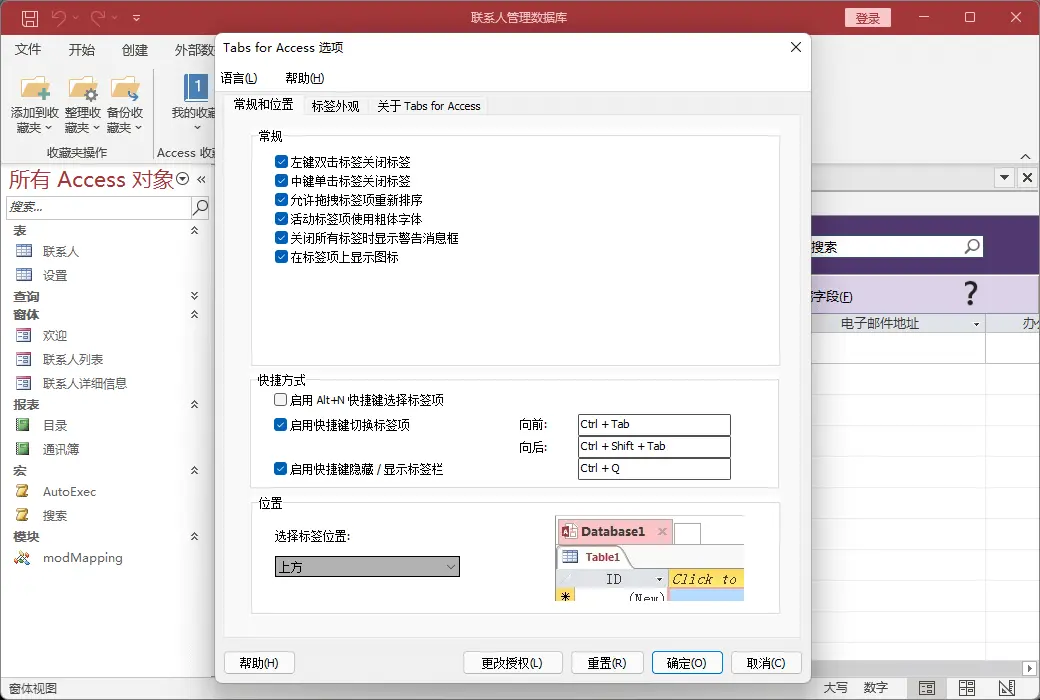
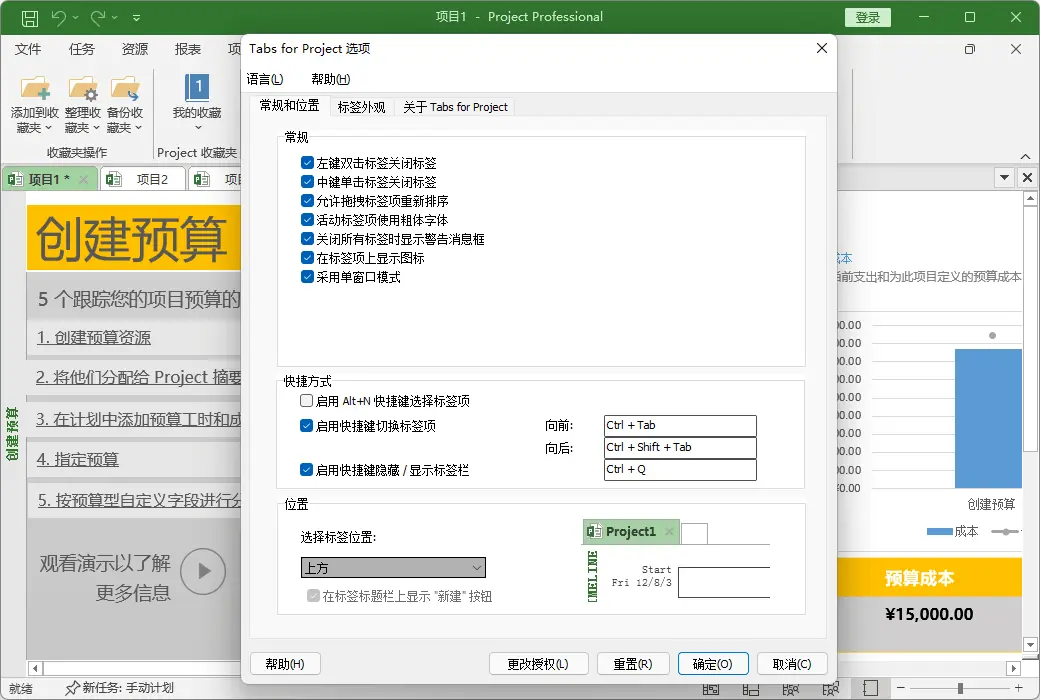
Office tags support multiple sets of built-in and custom shortcut keys to handle tags, hide/display the toolbar, switch tags, and select specific tags. You can also easily customize shortcut keys.